
JavaScript Modules Import and Export Explained .
Learn how modules help organize JavaScript code using import and export .

Hello, I’m Asim, a passionate Full Stack Developer with 1 year of hands-on experience in building scalable and user-friendly web applications. I work across both frontend and backend, enjoy solving real-world problems, and focus on writing clean, efficient, and maintainable code. I’m always eager to learn new technologies and grow as a developer.
Introduction: Why Modules Are Needed .
When developers first start learning JavaScript, most programs are written in a single file. For small scripts this works perfectly fine. However, as applications grow, this approach quickly becomes difficult to manage.
Imagine working on a project where hundreds of functions and variables exist inside one file. Finding specific code becomes harder, debugging becomes slower, and maintaining the application becomes frustrating.
For example:
function add(a, b) { return a + b; }
function multiply(a, b) { return a * b; }
function calculateTax(price) { return price * 0.15; }
function formatCurrency(value) { return "$" + value; }
At first this might look manageable. But as the project grows to hundreds or even thousands of lines, the file becomes messy and difficult to maintain.
This is where JavaScript Modules become extremely useful.
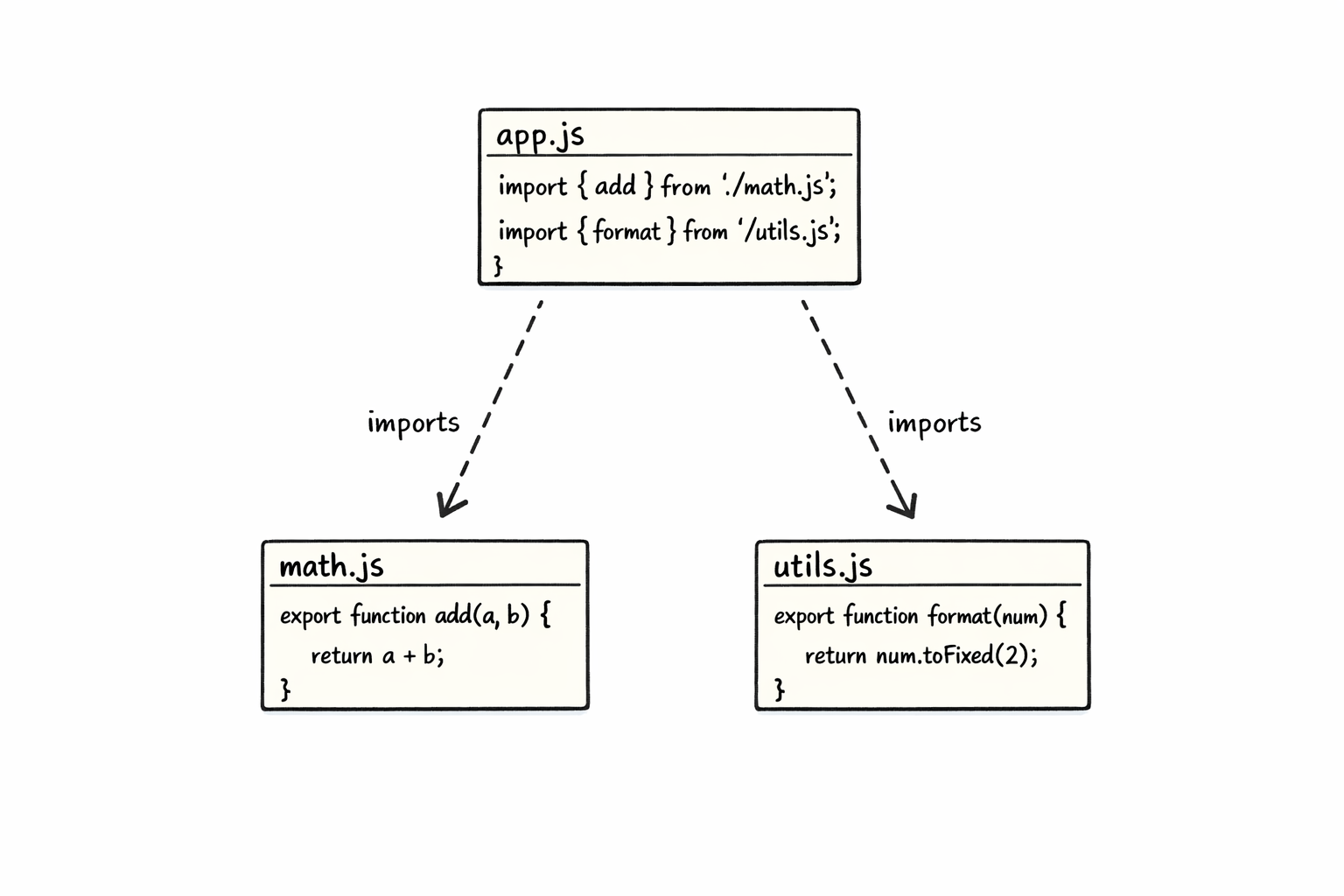
Modules allow developers to divide their code into multiple smaller files, where each file focuses on a specific responsibility. Instead of writing everything in one place, we can organize our project like this:
math.js
utils.js
app.js
Each file acts as a module, and JavaScript provides a system that allows these modules to communicate with each other using export and import.
This modular approach makes code:
Easier to read
Easier to maintain
Easier to scale in larger projects
In this article, we will learn how JavaScript modules work, how to export functions or values, how to import them into other files, and the difference between default exports and named exports.
Exporting Functions or Values .
To share code between files, we first need to export it from a module.
Exporting allows other files to use functions, variables, or constants defined in that module.
Example: math.js
export function add(a, b) {
  return a + b;
}

export function multiply(a, b) {
  return a * b;
}
Here we exported two functions:
addmultiply
These functions can now be used in other JavaScript files.
We can also export variables or constants:
export const PI = 3.14;
Now any module can import this constant.
Importing Modules .
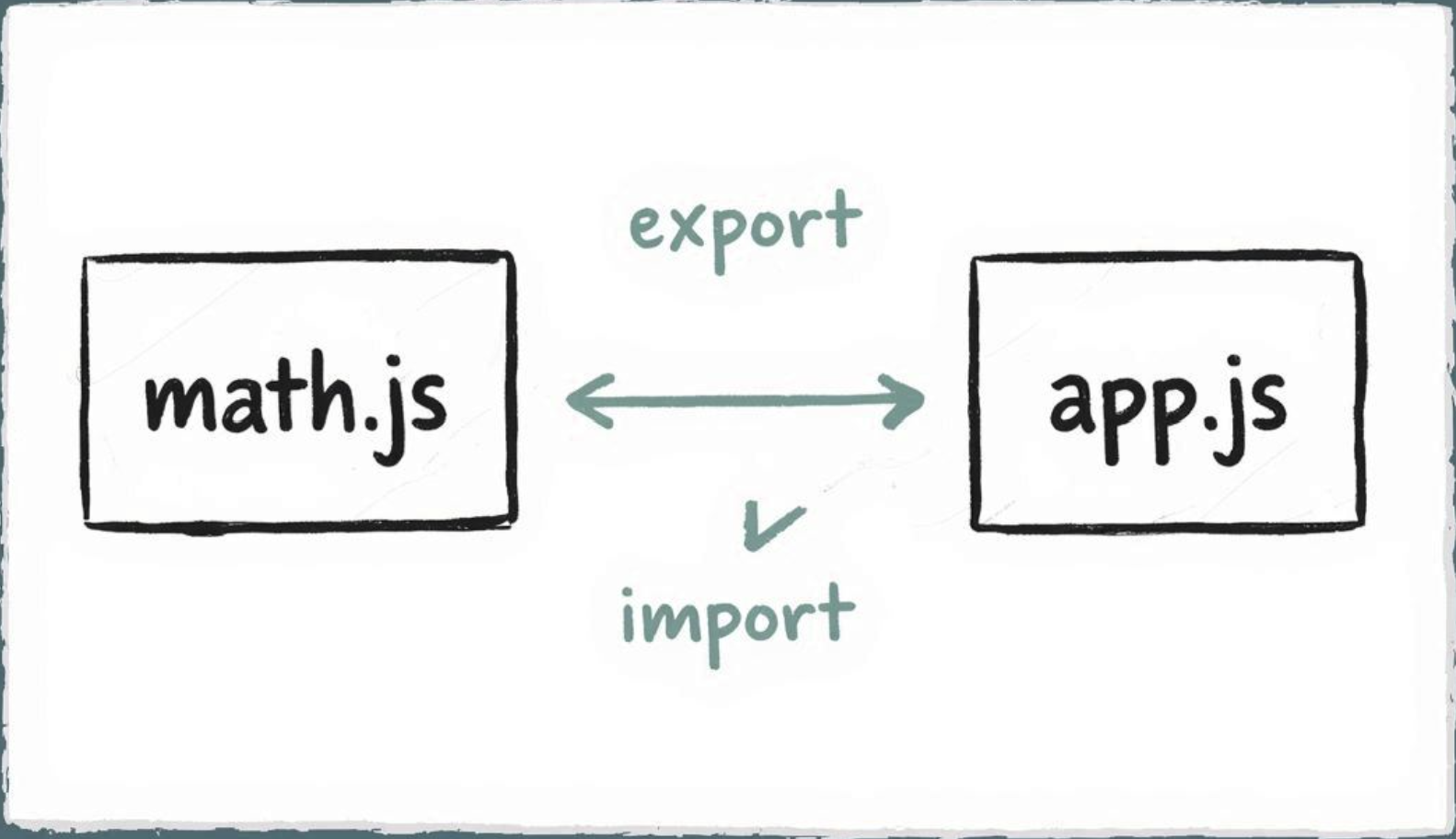
Once something is exported from a file, another file can import it.
Example: app.js
import { add, multiply } from "./math.js";

console.log(add(2, 3));       // 5
console.log(multiply(4, 5));  // 20
Here we imported the functions from math.js**.**
The curly braces {} indicate that we are importing named exports.
Default vs Named Exports
JavaScript modules support two types of exports:
Named Exports
Default Exports
Understanding the difference between them is important when organizing modular code.
Named Exports .
Named exports allow you to export multiple values from a single module.
Example:
export function add(a, b) {
  return a + b;
}

export function subtract(a, b) {
  return a - b;
}
Importing named exports:
import { add, subtract } from "./math.js";
Notice that we must use curly braces and the exact names of the exported functions.
Default Export .
A module can also export one default value.
Example:
export default function greet(name) {
  return "Hello " + name;
}
Importing default export:
import greet from "./greet.js";

console.log(greet("Asim"));
Unlike named exports, default imports do not use curly braces.
Each module can have only one default export.
Benefits of Modular Code .
Using modules provides many advantages when building JavaScript applications.
1. Better Code Organization .
Modules help divide large programs into smaller, manageable pieces.
2. Easier Maintenance .
Developers can update one module without affecting the entire project.
3. Code Reusability .
Modules can be reused in different parts of an application or even in different projects.
4. Better Team Collaboration .
In large teams, developers can work on different modules simultaneously.
Practical Example .
Let’s create a simple modular project.
Project structure:
math.js
app.js
math.js
export const square = (num) => num * num;
app.js
import { square } from "./math.js";

console.log(square(5)); // 25
Here we created a simple module that calculates the square of a number and imported it into another file.
This structure keeps code clean and maintainable.
Conclusion
As JavaScript applications grow larger, managing all code inside a single file becomes difficult. This is why JavaScript modules are an essential feature for writing clean and scalable applications.
Modules allow developers to divide their programs into smaller files where each module handles a specific task. By using export and import, these modules can share functionality while keeping the code organized.
Understanding the difference between named exports and default exports also provides flexibility when structuring modular applications.
Using modules leads to:
Better code organization
Easier maintenance
Improved reusability
Scalable application architecture
As you continue learning JavaScript, you will see that modern projects rely heavily on modular code. Practicing with modules now will help you write cleaner, more professional JavaScript applications in the future.